
LTX-2.5 Low VRAM Guide: Can 8GB, 12GB, or 16GB Run It?
Learn the real LTX-2.5 VRAM requirements for 8GB, 12GB, and 16GB GPUs, including official guidance, low-VRAM workflows, and practical tradeoffs.
“Can my GPU run LTX-2.5?” became one of the most common questions after the model launched. The answer is not a simple yes or no. With a large video model, successfully exporting one MP4 is very different from having a stable production workflow.
The LTX-2.5 product page lists 16GB as the minimum VRAM. If GPU capacity is your immediate constraint, render a clip online without a local GPU setup. The official ComfyUI setup guide recommends a CUDA GPU with 32GB or more VRAM and at least 100GB of free disk space. Community workflows have also demonstrated specific quantized setups on 8GB GPUs.
Those numbers describe three different conditions: a product minimum, a recommended full setup, and an experimental low-memory configuration.
32GB or more: closest to the complete workflow
With 32GB or more VRAM, you have more room for the official BF16 components, larger decode tiles, synchronized audio, and two-stage generation.
The official two-stage workflow generates a base result, applies a 2× spatial upscale, and runs a short refinement pass. It usually preserves more spatial detail, but it also needs more memory than a single-stage preview.
This tier makes the most sense for frequent generation and teams that want to reduce model-loading and offloading delays.
16GB VRAM: supported, but manage expectations
Sixteen gigabytes is the minimum shown on the official model page. It does not mean every workflow, resolution, and duration will fit comfortably at the same time.
A practical order of operations is:
- Load the official distilled single-stage workflow first.
- Test a short clip at a moderate base resolution.
- Lock the action, subject, and camera direction.
- Move to the two-stage workflow for the selected result.
- Add longer duration or audio processing only after the video path is stable.
This prevents expensive upscaling from running during basic prompt exploration.
8GB to 12GB: possible does not mean effortless
A recent 8GB LTX-2.5 community workflow used the 22B distilled model with W4A8 quantization, DynamicVRAM, asynchronous weight offloading, and tiled VAE decoding on an RTX 4060 Laptop with 16GB of system RAM.
That is useful evidence that low-VRAM execution is possible. It is not the same as official default support. Moving weights between VRAM, system memory, and storage can increase generation time substantially. Audio decoding, high resolution, or long clips may still trigger crashes, black output, or out-of-memory errors.
Treat 8GB to 12GB configurations as experimental workflows for users who are comfortable troubleshooting—not as guaranteed production baselines.
A safer low-VRAM workflow
Preview before you upscale
Use a single-stage workflow to decide whether the subject, action, and framing work. Switch to two-stage generation only for promising seeds.
Shorten the clip first
Frame count directly affects memory pressure. Several short shots are often easier to control than one long generation, especially now that LTX-2.5 supports connected multi-shot scenes.
Validate video and audio separately
If the workflow fails during final decoding, temporarily disable audio output and verify the video path. Restore the complete audio-video pipeline after the base generation is stable.
Keep one known-good graph
Do not change quantization, VAE, node versions, duration, and resolution in the same troubleshooting pass. Change one variable at a time and save the last successful graph.
Which VRAM tier should you choose?
- 32GB+: Best for the complete official workflow and repeated production use.
- 16GB: Meets the published minimum, but resolution, duration, and pipeline stages still need attention.
- 8GB–12GB: Community quantized workflows can run, with meaningful speed and stability tradeoffs.
- Below 8GB: A hosted API may cost less time than maintaining an aggressively offloaded local graph.
Do not judge a GPU only by whether it completes one generation. Ask whether it can survive repeated prompt changes, retries, upscaling, and final decoding without turning every shot into a troubleshooting session.
Once your setup is stable, use the LTX-2.5 multi-shot prompt guide to reduce avoidable retries, or compare LTX-2.5 vs MiniMax H3 before committing to a model.
Skip the GPU setup. No local install, no VRAM tuning — paste a prompt and render an LTX-2.5 clip in the browser. Try it on ltx-23.org →
Author

LTX-2.5 Editorial Team
The editorial team behind the LTX model guides and workflows published on ltx-23.org.
Categories
More Posts

LTX-2.5 Prompt Guide: Better Motion, Camera Direction, Cuts, and Audio
Write clearer LTX-2.5 prompts for subject motion, camera direction, connected cuts, dialogue, ambience, and more consistent video generation.
LTX-2.5 IC-LoRA Guide: Video Editing and Control in ComfyUI
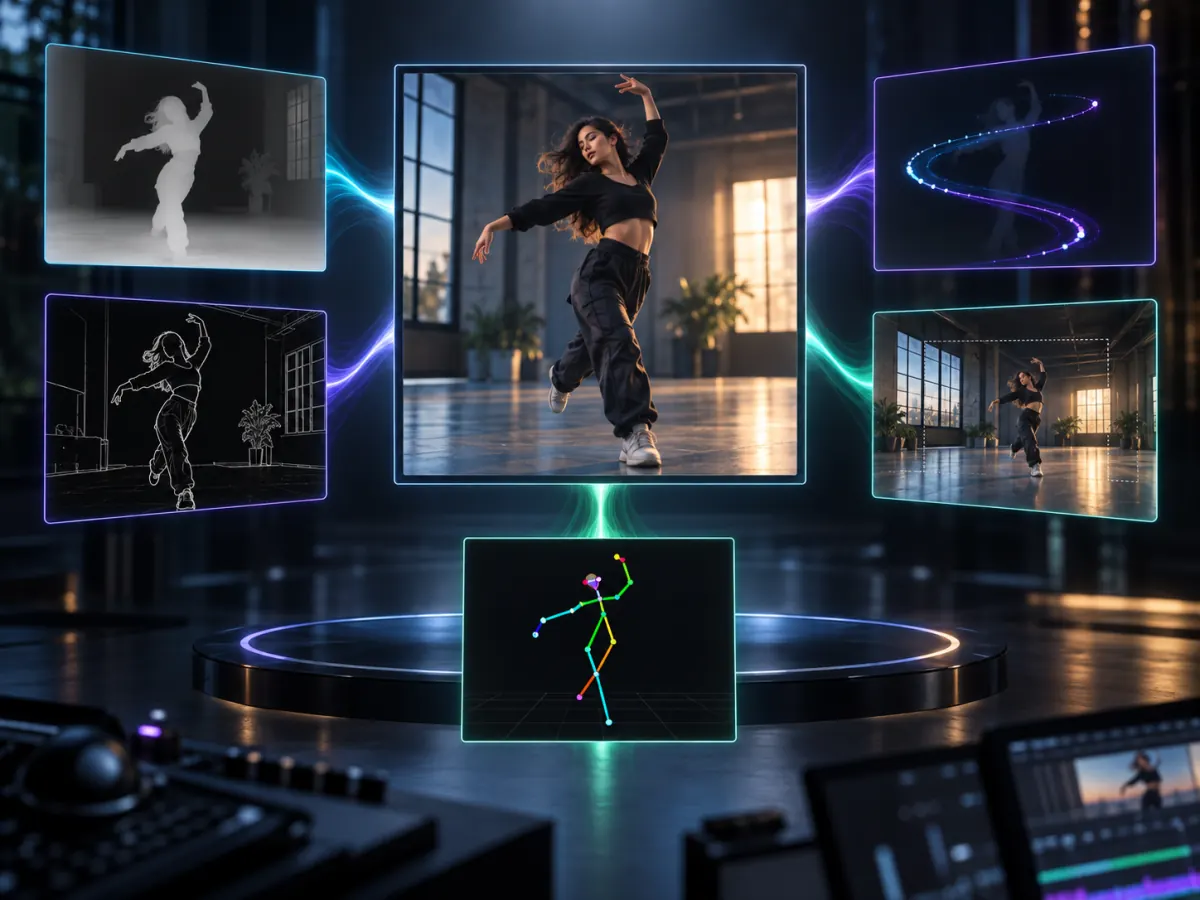
Explore LTX-2.5 IC-LoRA workflows for pose control, motion guidance, inpainting, outpainting, consistent characters, and video upscaling.

LTX-2.5 DFR Explained: How Diffusion Fidelity Rendering Works
Learn how LTX-2.5 DFR allocates compute by scene complexity, how its two-stage pipeline works, and when to use it for AI video generation.